
High Dynamic Range photos
Photographs in extreme lighting are a compromise. Either the
highlights are overexposed or the shadows are underexposed. But with
HDR techniques you can take multiple photos at different exposures,
then combine them into a normal image with fine local control over exposure.
It’s a bit like the Shadows/Highlights adjustment, only
with real data instead of fakery.
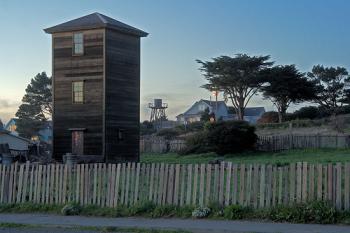 I made a
small
HDR experiment while in Mendocino. The result isn’t great;
boring composition, the fence looks unnatural, and I didn’t have
enough range of source images. But it
was a good exercise. Here’s how to do HDR in Photoshop CS2:
I made a
small
HDR experiment while in Mendocino. The result isn’t great;
boring composition, the fence looks unnatural, and I didn’t have
enough range of source images. But it
was a good exercise. Here’s how to do HDR in Photoshop CS2:
Photoshop CS2 makes HDR easy for normal people. Some intro material on HDR can be found in this tutorial and this article. The HDR Flickr Group is fun, too.
- Take several photos of the same scene with a tripod at a range of exposures. No individual image will be right, but you’ll get details in both shadows and highlights.
- In Photoshop CS2 select File / Automate / Merge to HDR. Choose your images; RAW is preferred. Unless your tripod is perfect you want “Attempt to Automatically Align Source Imges”.
- In the preview, just click “OK”.
- Choose Image / Mode / 8-bit to bring the HDR down to a normal image.
- You have several options for methods for squashing the image. “Local Adaptation” is the powerful one. You can also use the toning curve like an uber-levels tool to tune the exposure.
As seen on BoingBoing.